 Merge
Add text to a photo
Put a short, readable caption directly on a JPG, PNG, or WebP and save a PNG.
Stays on your device · never uploaded. How to verify
Drop a file here
JPG, PNG or WebP
Result
Caption a Sunday market photo
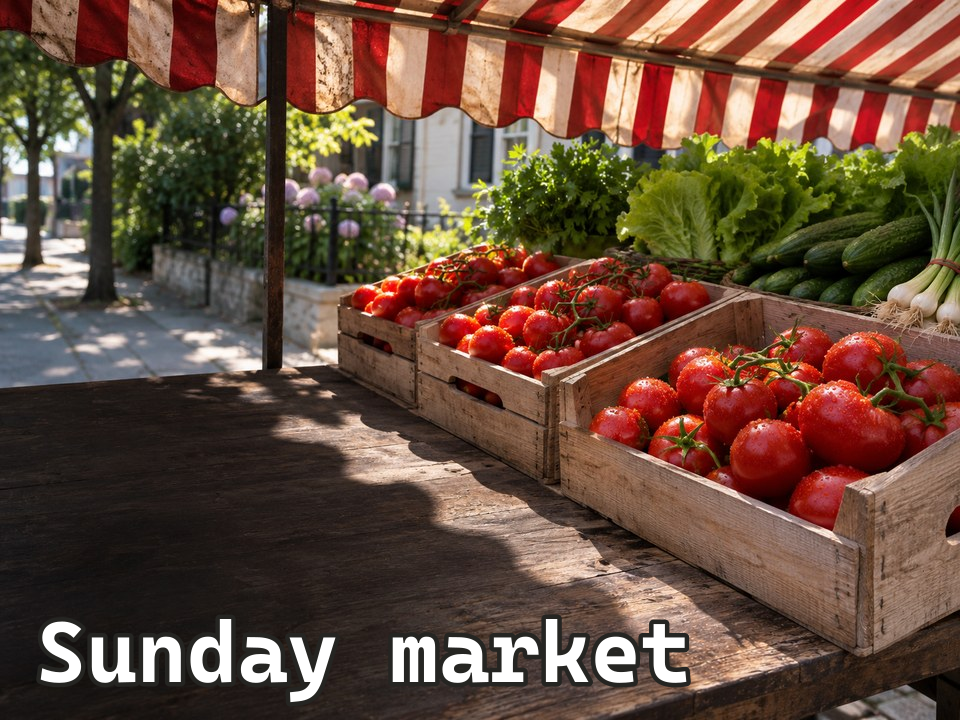
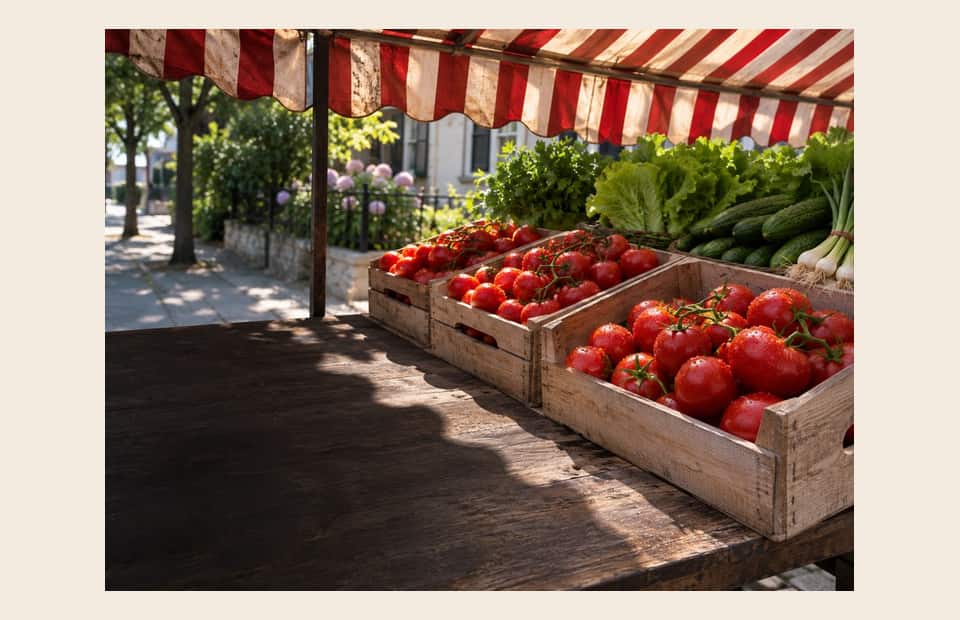
Find a quiet part of the frame
Look for a section of the image with enough open space for your wording. Sky, an empty wall, or a plain table can give a caption room to breathe. A busy background competes with smaller characters, even when the letters have an outline. If the important subject is on the left, try a corner on the right or center the text in open space above it. Use Crop image first if removing an edge would give the composition a better balance.
Write for the size people will see
Start with a date, place name, or one short phrase. This editor fits one line into the available width. A long sentence can make the letters narrow, so move details into the surrounding message if readers will only see a small image. The size is a percentage of the shorter edge, which gives a useful starting point for both landscape and portrait photos. Increase it for a heading and decrease it for a small label. Choose a text color with enough contrast to stand out in the area you picked.
Read the rendered copy before saving
Choose Add text to see the PNG, then check the caption at the size you plan to post or send. Look for spelling errors and letters that cover faces, signs, or other important details. You can adjust the wording, size, color, and corner and render again. The caption becomes part of the exported pixels. Keep your source photo if you may want a different caption later. To show the captioned photo alongside the original, use Combine two photos. For a monochrome backdrop, convert the picture to grayscale first. For a subtle credit over a photo set, use Add watermark to control opacity.
| Caption | Full-opacity text with a contrasting edge. |
|---|---|
| Watermark | A lighter credit that leaves more of the photo visible. |
Frequently asked questions
Can I wrap a caption across lines?
The editor fits a single line. Keep it short enough to read at the intended viewing size.
Can I move the caption after saving?
The downloaded PNG contains the drawn letters. Use the source photo again when you want to change position.
Will adding text fill transparent areas?
The PNG keeps clear pixels except where the letters or their outline are drawn.