 Merge
Blur a selected area of an image
Drag a rectangle over a face, label, or other detail and choose how strongly to blur that area.
Stays on your device · never uploaded. How to verify
Drop a file here
JPG, PNG or WebP
Result
An order label softened on a parcel
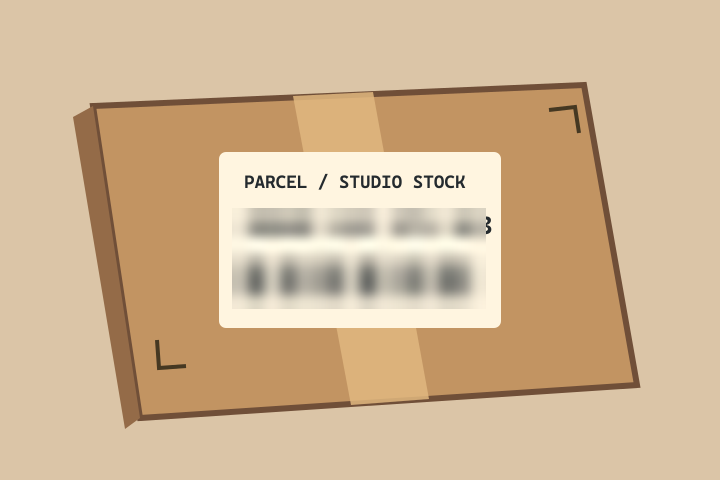
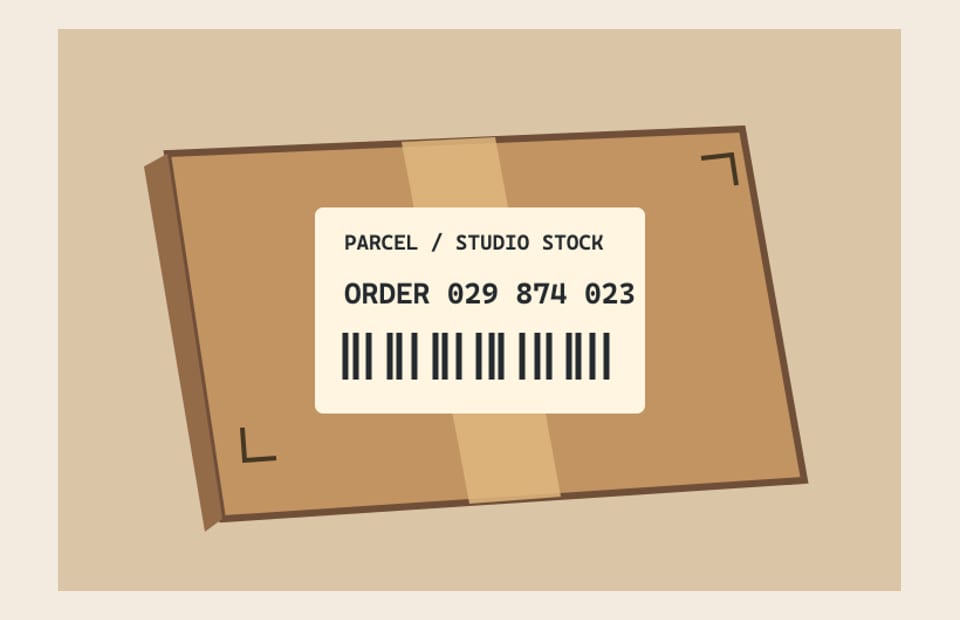
Mark the detail by hand
Choose a JPG, PNG, or WebP and look at the rectangle over the preview. Drag across the detail to make a new rectangle, or drag a corner to widen or narrow the current one. The corner controls are useful when one edge is already in the right place. You can also type Left and Top coordinates and a Width and Height in source pixels. Start outside the edge of a label so the selection covers the entire number, including a prefix or a small trailing character that could otherwise remain visible.
Check the blur at the size people will see
A higher Blur strength smooths over larger groups of pixels. Increase it when the original detail is large or bold. The effect uses the pixels inside the rectangle and applies the softened version in the same rectangle. At the original output resolution, pixels outside that area remain as they appeared after decoding. Open the result and check it at the size at which it will be shared. If an address, credential, or other sensitive information must be unreadable, remove it with Crop image or cover it with an opaque block in a separate editor.
Review the entire frame before sharing
Look beyond the marked area. Reflections, shadows, and printed copies of the same information can appear elsewhere in a photo. This editor acts on the rectangle you choose, and you can open the saved PNG again to work on a second area. Every extra pass makes a separate file. If your concern is information stored alongside the pixels, such as camera or GPS fields, use Remove EXIF data and inspect its metadata report. Keep the original and share only the copy you intend others to see. For a group of blurred copies, use Merge photos to arrange them in one image.
| Drag in the preview | Place a rectangle visually over a detail. |
|---|---|
| Enter coordinates | Set the exact rectangle in source pixels. |
Frequently asked questions
Can I blur a face?
Yes. Draw a rectangle around it, choose a strength, and inspect the result before sharing.
Does the whole image become blurry?
The blur is applied only to the marked rectangle. An oversized image may be scaled down to fit the browser canvas.
Is the blur suitable for redacting sensitive text?
Use an opaque cover or crop the detail out. Blurred text or shapes may still be recognizable.